





- Joined
- Dec 20, 2025
- Messages
- 94
- Reaction score
- 317
- Points
- 62
- Awards
- 4
- Location
- JO77BS
- Website
- www.qrz.com
- Feedback score
- 0
- Reputation
- Gold 619
Setup your BlueDV Configuration (Windows Desktop)
1.) Start by clicking on the BlueDV icon to start the desktop program on your Windows based computer.
BlueDV Deskto Icon
2.) Before we begin the configuration make sure you have the latest DMR Masters database loaded by clicking on the Update Menu item and then Update DMR Masters link as shown below.
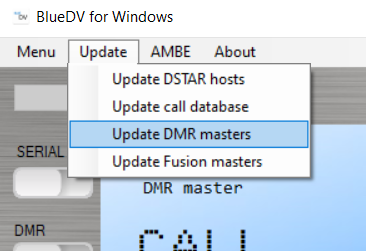
Update Menu
3.) Next click on Menu item and then Setup Link to enter the setup/configurations section.
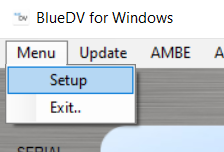
Main Menu
4.) In the General Section enter your Call Sign, Verify the frequency is a valid frequency in the UHF Amateur Radio Band and make sure there are valid Lat and Long Values, Default values should work just find but make sure there are values here.
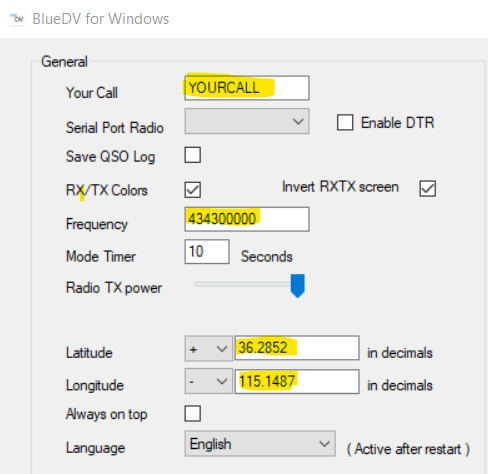
General Section in the Setup Screen
5.) In the DMR Section enter the following:
- DMR ID Simple - This is your 7-digit Radio ID
- DMR ID hotspot - This is your 7-digit Radio ID plus two digits to denote the alias ID. If this is your first hotspot then use 01 or if your second use 02, etc. This must be a 9 digit ID (7-digit Radio ID plus Alias two digit)
- DMR Type - Select BM for BrandMeister
- DMR Master - Select your preferred DMR Master to Connect to.
- Master Password - This is your hotspot security password set in self care dashboard. If you need to create one for forgot what it is see HotSpot Security guide to create/reset the password.
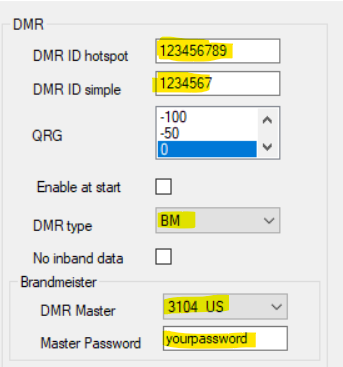
DMR Section in the Setup Screen
6.) It is assumed you already have the AMBE settings set for your situation, If using ThumbDV or DVStick make sure that is selected in the AMBE Section. If using a DVMega Hotspot reference the documents for the DVMega which came with your device.
7.) Once you are done click the Save Button at the bottom left. This will take you back to the main screen.
8.) To start the connection click on the Serial Radio Button, wait for it to establish connection to your device and then click on the DMR Radio Button. If all configurations where entered properly you will see under the DMR Status area, Logged into DMR. Plus you will see on the main screen the server it is connected to as shown below. This is an example of a successful connection to BrandMeister.
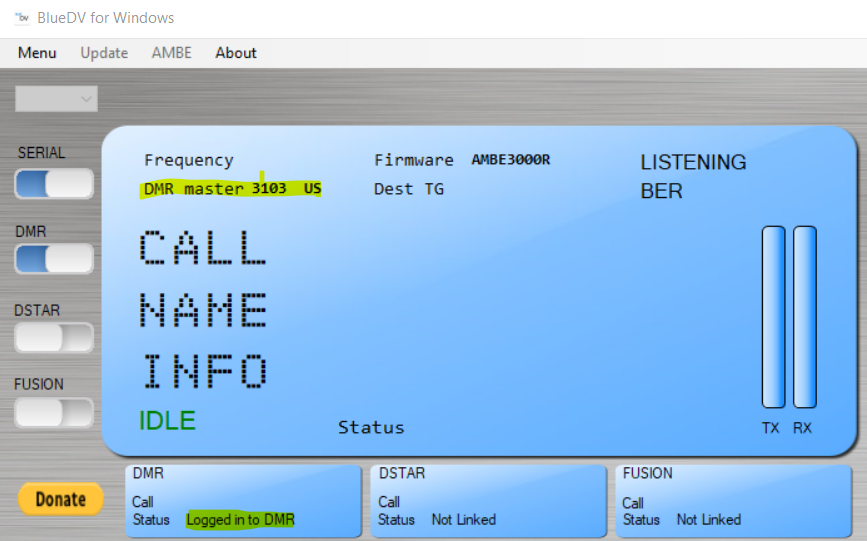
Main Status Area showing a successfully connected to BM
9.) You are now connected and can start to communicate with fellow ham radio operators on BrandMeister.